
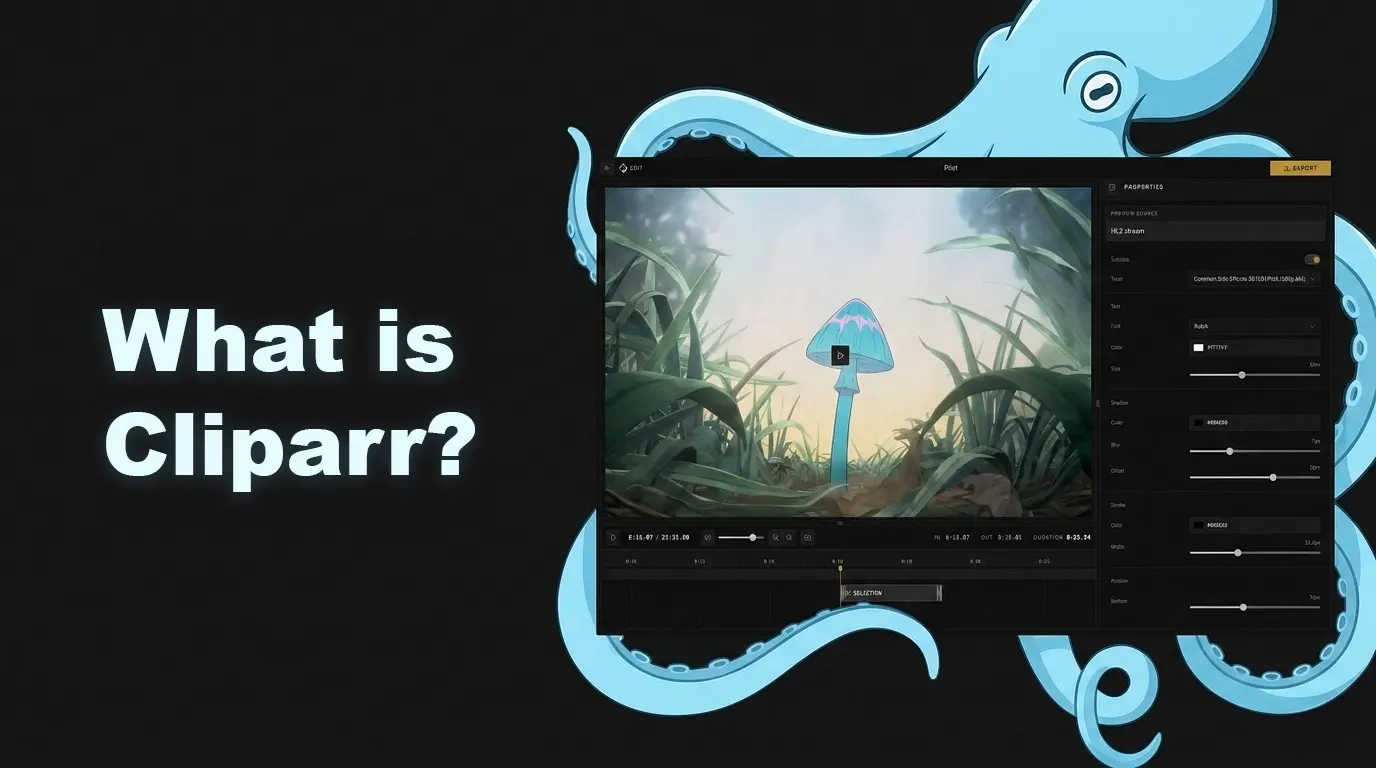
Cliparr is a self-hosted video clipper for Plex, Jellyfin, and local files. It uses a small server for provider access, saved sources, and secure persistence, while the editing and export workflow runs in the browser.
While watching something in Plex or Jellyfin, have you ever wanted to quickly grab a clip, possibly with subtitles, and export without downloading the full file and opening a whole video editor?
Cliparr was designed to make it easy and quick to get from “watching something” to “sharing a clip of it” with as few steps and as little waiting as possible.
If you want to jump right in, see Getting started. If you want to hear more about how it was built, read on.
What Cliparr Does
Cliparr connects to Plex and Jellyfin, opens local files or direct media URLs, and turns the thing you are already watching into a short exportable clip. It can detect currently playing media, jump to the playback position, trim in a focused timeline editor, configure export settings, and burn in supported subtitles.
- Connect Plex, Jellyfin, or local files.
- Detect currently playing media and jump directly to that timestamp.
- Trim and configure output in a focused timeline editor.
- Export MP4, WebM, MOV, MKV, or GIF in-browser.
If you’re a content creator, this will fit right into your existing editing workflow, and make getting clips faster. It is useful for TikTokers, YouTube video essays, streamers who want to clip highlights from a long stream, or making a quick meme.
Cliparr As A Plex Clipper
When you connect Plex, Cliparr can discover active playback sessions and open the media you are already watching. Instead of manually finding the file, copying it somewhere else, and lining up the timestamp in another editor, Cliparr can start from the current Plex playback position and let you trim the moment in the browser.
That makes it useful for people who keep personal media in Plex but still want a quick way to export short clips, highlights, references, or reaction-ready moments. See the provider setup guide for the current Plex connection flow.
Cliparr As A Jellyfin Clipper
Cliparr also works with Jellyfin sources. After connecting a Jellyfin server, Cliparr can list currently playing media, load source details, expose available tracks, and send the selected range through the same browser export workflow.
For Jellyfin users, the main value is similar: keep the media library on your own server, but move the expensive export work to the browser that is actually creating the clip. That keeps a small home server, NAS, or mini PC from having to behave like a render workstation.
Clip Local Video Files
You do not need Plex or Jellyfin to use the self-hosted Cliparr app. You can open local video files or direct media URLs, choose a range, and export a clip from your browser. That makes Cliparr useful for downloaded recordings, camera files, screen captures, stream archives, or any local source where you want a smaller shareable segment.
The difference is hosting and workflow. Cliparr is the self-hosted app you run when you want Plex, Jellyfin, provider sessions, saved sources, and the full clipping editor. Cliparr Convert is the hosted convert-only tool for whole-file jobs: you do not need to self-host anything, and the conversion runs entirely in your browser.
The Tech Stack
Cliparr is a TypeScript monorepo with a React frontend and a small Express server. The server handles source/provider plumbing and secure persistence. The browser handles the clip editing and most media processing.
| Component | What it does in Cliparr |
|---|---|
| React + Vite frontend | App shell, provider setup, currently-playing discovery, editor state, export controls, and TanStack Router routes. |
| React timeline editor | Customized @xzdarcy/react-timeline-editor for clip ranges and arrangement. |
| Mediabunny | Browser-side media pipeline: source reads, track selection, metadata, and exports like MP4/WebM/MOV/MKV. |
| gifenc | Base GIF encoder for the custom fork @techsquidtv/gifenc with dithering support. |
| Tailwind CSS v4 | Responsive UI system with shared components. |
| Express + SQLite/Drizzle | Provider auth, session sync, source records, media routes, encrypted credentials, and migrations. |
| Astro + MDX | Website, docs, changelog, blog, RSS, and static metadata. |
Why Not Just Run FFmpeg on the Server?
The obvious path for a media app like Cliparr would have been to use FFmpeg on the server; in fact, a much earlier version from years ago did. And if this were a full video editor, I might have stuck with that path.
For Cliparr, browser APIs have come so far that we can take advantage of hardware acceleration via the WebCodecs API, which we utilize through the Mediabunny library. That means your powerful M-series Mac, or your gaming PC with a high-end GPU, can do the heavy lifting instead of a Raspberry Pi, underpowered NAS, or decade-old desktop PC that might be running your home server.
So, I opted for a browser-first architecture where the server is mostly a proxy and the browser does the media processing.
That buys a few things:
- Local files do not need to be uploaded to the server.
- The server can stay small: provider auth, source records, media routes, and persistence.
- Infinitely scalable exports, since it’s all on the client.
- The Docker image and self-hosted setup stay boring. No complex multi-service architecture.
Of course, not everything is perfect in the browser. GIF support was requested early on, and is not part of the WebCodecs API. The existing web-based GIF encoders I found were abandoned and lacked important features. As GIF is a dying format, I wasn’t shocked that there wasn’t a modern solution for this.
There were two choices: use a popular Rust-based GIF encoder (gifski) that produced high-quality GIFs but would require WASM, or gifenc, which was a pure JavaScript encoder, but produced lower-quality output and hadn’t been touched in over two years.
We could have run gifski on the backend, but that would break the browser-first ethos, and WASM was not only giving me trouble to get working (it is not yet fully implemented in the gifski repo), it would have made memory management a little more difficult.
Ultimately, I forked gifenc and used ChatGPT Codex 5.5 to help me quickly port the repo to TypeScript, modernize the codebase, and finally, add dithering support to improve the output quality and get something a little closer to what gifski produces (although still not quite as good).
What Cliparr Is, and Is Not
Cliparr is not trying to become CapCut or Premiere. It is a focused tool for a specific workflow: clipping something you are already watching and sharing it fast. It is not trying to be a general-purpose video editor, media library manager, or background transcoding platform.
That means there are a few things I want Cliparr to keep optimizing for:
- Fast clipping over deep editing.
- A small server that is easy to run and understand.
- One workflow for Plex, Jellyfin, and local files.
- Practical outputs people actually share: MP4, WebM, MOV, MKV, and GIF.
- Clear boundaries around what runs on the server and what runs in the browser.
There are plenty of features that could be useful someday, but I do not want Cliparr to grow into a general-purpose NLE, media library manager, or background transcoding platform. The app should stay focused on making short clips feel effortless.
If a feature helps that workflow, it belongs in the conversation. If it turns Cliparr into another heavy media server, it probably does not.
About the AI Involvement
AI was heavily involved in building Cliparr.
I have been programming for roughly 25 years, about 10 professionally, and I used ChatGPT/Codex to rapidly develop features, debug issues, write tests, and iterate on the codebase. I started with Microsoft FrontPage 2003, and today my main IDEs include VSCode and Codex.
The product decisions, architecture, tradeoffs, and final review were still mine. AI helped me move faster, but speed only matters if the work holds up. Cliparr uses aggressive linting rules, high test coverage, manual reviews, and a suite of CI checks.
I do not think AI usage needs to be treated like a confession. In this case, though, it is part of the story of how Cliparr came together, so it is worth saying plainly.
I am proud of the codebase and the product. AI helped me get there faster, but I reviewed the work, approved what shipped, and am responsible for the final result.
Try It
Start with Getting started, connect Plex or Jellyfin, try local videos, and review export settings when you are ready to tune the output. For full-file conversion without self-hosting, use Cliparr Convert. For release-by-release details, see the Changelog.